Systems · 7 min read
How to schedule TikTok posts, and keep doing it
To schedule a TikTok post, upload the finished video either on TikTok's web upload page or in a scheduling tool connected through TikTok's official login, write the caption, choose who can see it and how people can interact, then set a date and time instead of posting now. For a regular cadence, set weekly slots once and add each video to a queue.
Scheduling a TikTok post takes two minutes. Scheduling a month of them, in a way that still works in week three, takes a little setup. Most guides stop at the button. This one goes on to the part that keeps an account posting.
It covers the three places you can schedule from, the eight steps from finished video to published post, the settings you should never leave to a default, and a routine that turns scheduling into one sitting a month.
Four rules before you start
Schedule finished work only
The queue is for posts that could go out this minute. Anything still being edited stays out of it.
One place, one queue
Pick a single tool to own TikTok scheduling. Every extra place you can schedule from is a place a mistake can come from.
Decide the timing once
Weekly slots replace a decision you would otherwise make for every post. Set them, keep them for a month, then adjust from your own numbers.
The settings are yours
Privacy, interactions and disclosure are the account owner's choices. A tool or an assistant can carry them out. It should not make them.
Eight steps, from file to feed
Finish the video first
A scheduler holds finished posts. Have the video exported in vertical format, with its captions burned in or added, before you open any scheduling screen. Scheduling a placeholder and promising yourself to swap it later is how the wrong file gets published.
Example
Twelve files in one folder, named by date: 03-tip-grind-size.mp4, 05-demo-pour.mp4. Scheduling becomes dragging files in order.
Watch out
Scheduling from an editing app's draft. If the export is not final, the post is not ready.
Choose where you schedule from
You have three options. TikTok's own web upload page, which needs no extra tool. A scheduling tool, which adds a queue, a calendar and sometimes other networks. Or an AI assistant connected to a scheduler, where you ask in a chat. Pick one and use only that one.
Example
A shop posting twice a week uses TikTok's own scheduler. A brand posting four times a week from a monthly batch uses a tool with a queue.
Watch out
Scheduling the same account from two places. You get double posts, or gaps where each tool looked full on its own.
Connect the account the official way
A scheduling tool should send you to TikTok to sign in and approve access. You never type your TikTok password into the tool itself. This is how Spoolt connects, and it publishes through TikTok's official API. You can disconnect the account again whenever you like.
Example
Click connect, land on a TikTok page that lists what the tool may do, approve, and return. The tool now shows your account name and avatar.
Watch out
Any tool or freelancer asking for the password itself. Say no, however convenient it sounds.
Set your weekly slots once
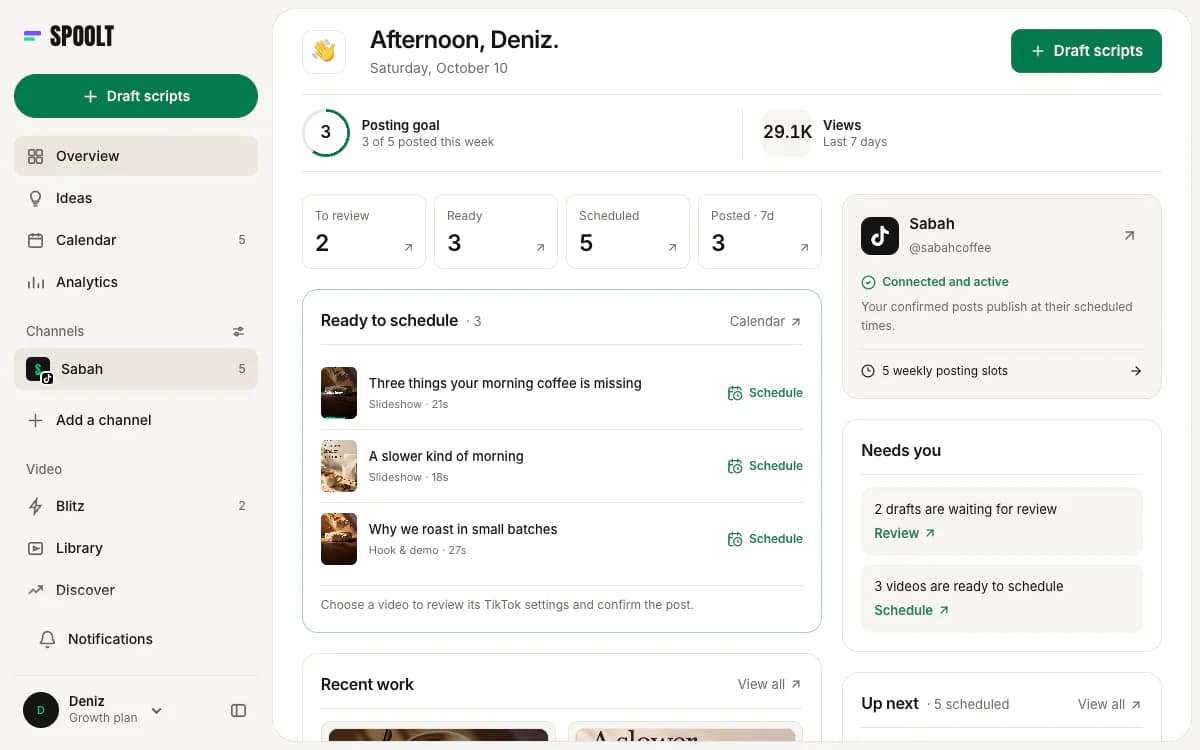
Decide which days and times you post and save them as recurring slots in your own time zone. From then on you add a video to the queue and it takes the next free slot. You make the timing decision once a month instead of once a post.
Example
Monday, Wednesday and Friday at 6 pm. In Spoolt each queued video takes the next free slot, and you can still set one post to a custom time.
Watch out
Choosing slots from a generic chart of best times. Start with times you can keep steady, then adjust from your own results after a month.
Write the caption for the feed
Write each caption when you schedule, with the video in front of you. Put the point in the first line, because the rest is cut off in the feed. Add a few specific hashtags and nothing you would not say out loud.
Example
First line: 'Your grinder is set too fine. Here is how to tell.' Then two hashtags that describe the video, not the whole industry.
Watch out
Pasting one caption across the whole batch. Twelve identical captions read as spam.
Choose privacy, interactions and disclosure yourself
Each post needs a decision on who can see it, whether comments, duets and stitches are allowed, and whether it promotes your own brand or a paid partner. Make that choice for each post. In Spoolt this review is required for every TikTok post and nothing is filled in for you.
Example
An ordinary tip: visible to everyone, comments on, no disclosure. A video made for a partner: paid partnership disclosure on. Same queue, different settings.
Watch out
Scheduling a promotional video without the commercial-content disclosure. It is a platform rule, and the account owner is the one responsible.
Queue the batch and look at the month
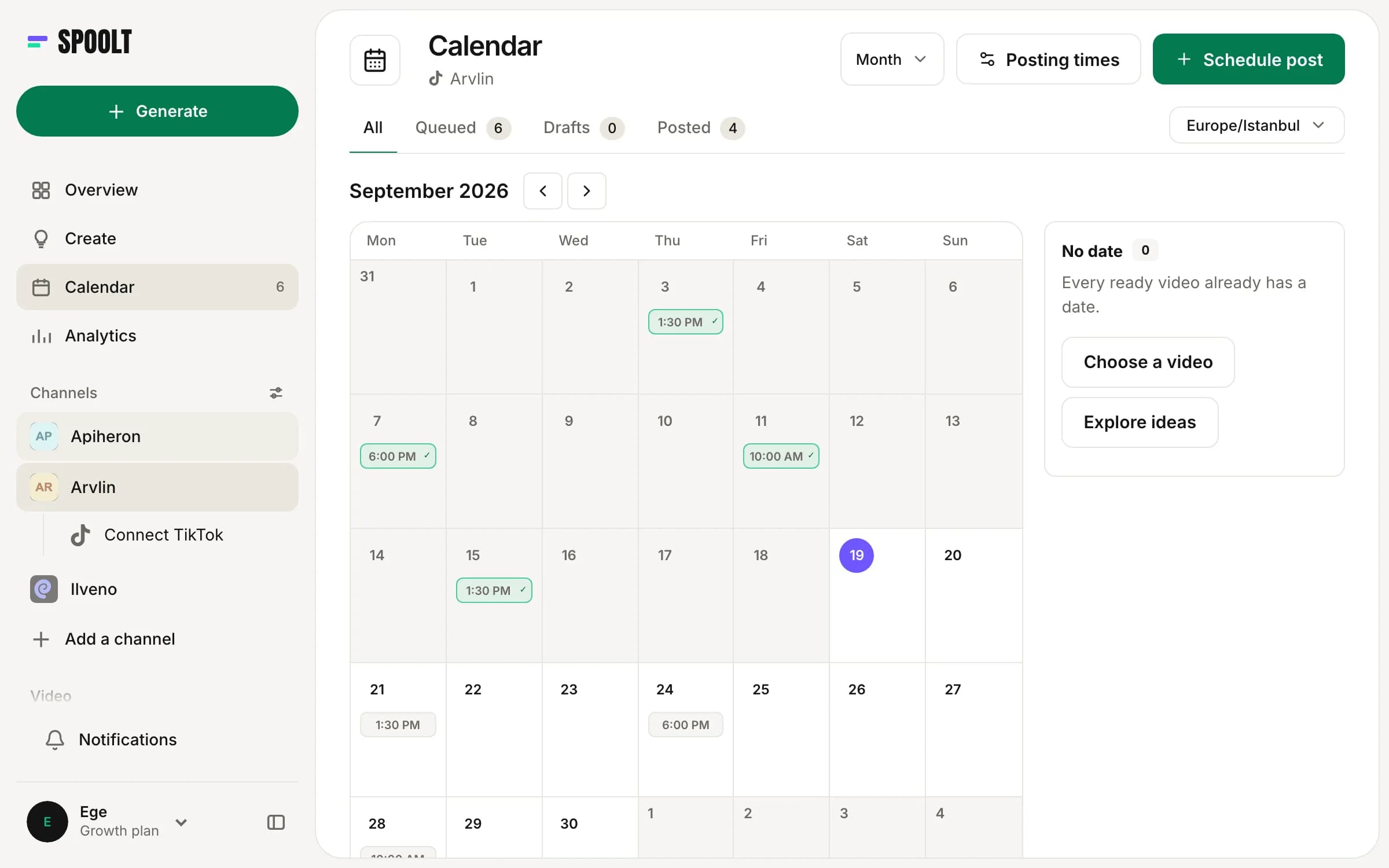
Add every finished video in one sitting, then look at the calendar as a whole. Check that the same format does not run three times in a row and that nothing lands on a date that matters for another reason.
Example
Twelve videos added in ten minutes. On the calendar, two demos sit next to each other; move one to the following week.
Watch out
Queueing and never looking. A product launch moves, the calendar does not, and an out-of-date video goes out.
Confirm it went out, then read the result
For the first week with any tool, open TikTok after each slot and check the post is live with the right settings. After that, read results once a month, not after every post, and change one thing at a time.
Example
A post shows as failed: the account connection had expired. Reconnect, reschedule, and check the next slot.
Watch out
Assuming silence means success. A failed post makes no noise. Look at the calendar's status after every slot in the first week.
How scheduling goes wrong
Scheduling one post at a time
Opening a scheduler every day is posting by hand with extra steps. Schedule in batches or the tool saves you nothing.
Forgetting the time zone
Six pm in the wrong time zone is the middle of the night for your audience. Check the zone on the slot, not only the hour.
Editing after it is queued
Reopening queued posts to adjust captions takes the time you saved. Finish each post once, then leave the queue alone.
No one watching the queue run dry
A queue ends. Put a reminder in your calendar a week before the last scheduled post, or the account goes quiet without anyone deciding it should.
A month of scheduling in one sitting
- First Monday
Finish and export the month's videos. Name the files in the order you want them posted.
- First Tuesday, 30 minutes
Add each video to the queue, write its caption and confirm its settings. Then check the month on the calendar.
- After each slot, week one
Open TikTok and confirm the post is live with the settings you chose.
- Third week
Start the next batch while this one is still running, so the queue never reaches zero.
- Last Friday
Read the month's results once. Move one slot or change one format for next month, not both.
Scheduling FAQ
Can you schedule TikTok posts for free?
Yes. TikTok's own scheduler on its web upload page costs nothing extra. Spoolt's free plan also schedules up to 15 TikTok posts a month on one channel, with no card, and scheduling does not use credits.
Can I schedule TikTok posts from my phone?
It depends on the tool. TikTok documents scheduling on its web upload page. Spoolt runs in a mobile browser, so you can queue and move posts from a phone; its iOS and Android apps are not out yet.
Will a scheduled post go out without me?
The video itself does, at the time you set, if the tool publishes directly. In Spoolt you confirm each post's privacy, interaction and disclosure settings when you schedule it, and after that it is published on time without you.
Can an AI assistant schedule TikTok posts for me?
Yes, if your scheduler has a connector for it. Spoolt has an MCP connector on every plan: an assistant such as Claude can add a video to your queue or move a post. It has to ask you for the TikTok settings; it cannot choose them.
The schedule button is the easy part. What keeps an account posting is the routine around it: finished videos in a folder, slots you set once, a person who chooses each post's settings, and a date in the calendar for making the next batch.
Want these written in your brand's voice? Paste your website and Spoolt turns ideas like these into a month of scripted short-form — triage in Blitz, schedule to TikTok. Free to try, no card.
← All playbooks